
Creating a Workflow (Skill)
In Moltin, a workflow is a Skill. You create and edit skills from an agent's Editor.
Create a skill
Click Add Skill
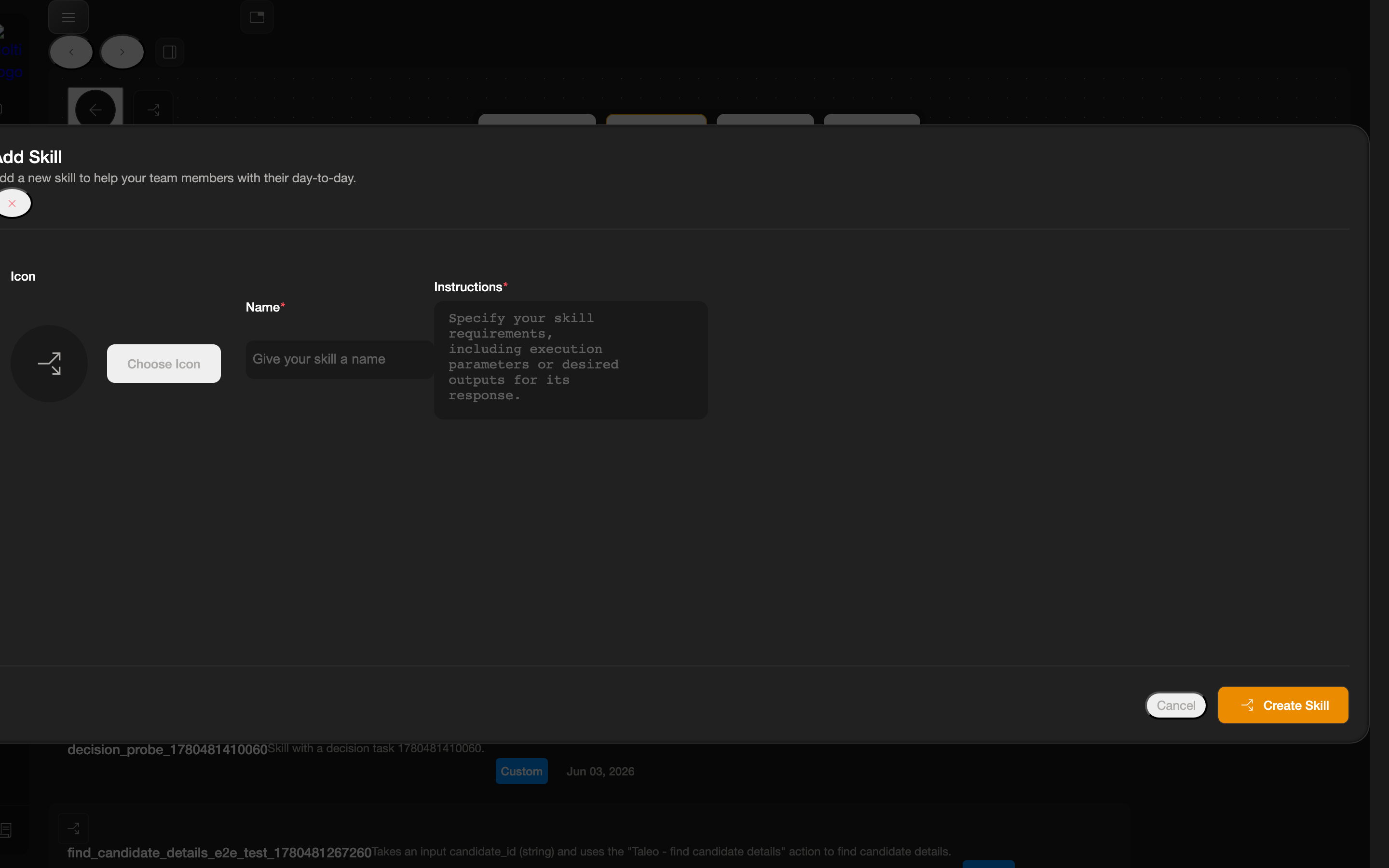
In the Editor, click the orange Add Skill button. The Add Skill dialog opens.
Give it a name
Enter a Name (required). For example, Find Candidate Details.
Add instructions
Enter Instructions (required) describing what the skill should do. Be specific about inputs and the action the skill performs.
(Optional) choose an icon
Click Choose Icon to pick an emoji or icon for the skill.
Create
Click Create Skill. On success the dialog closes and you'll see a confirmation that the skill was created.
Important behaviors
The name is converted to a slug
On save, the skill name is slugified: My Skill 123 becomes my_skill_123 (lowercase, spaces become underscores). Keep this in mind when you look for the skill afterward.
Newly created skills aren't auto-selected
After creating a skill, the canvas may still show "No skill chosen." Click the skill in the Skills list to open it before adding tasks.
Validation & cancelling
- Clicking Create Skill with an empty Name or Instructions keeps the dialog open and flags the missing field.
- Click Cancel to close the dialog without creating a skill.
Choosing an icon
The Choose Icon picker has two tabs — Emojis and Icons — with a filter box and a shuffle (random) control.
Once your skill exists, move on to Adding Tasks.